
Introducing Qualys Recommended Dashboards and Automated Dashboard Lifecycle Management

Qualys Unified Dashboard (UD) gives security teams a consolidated view of the metrics that matter most. It brings information from across Qualys applications into one place, helping teams monitor risk, track security posture, and communicate insights across the organization.
Common dashboard use cases include:
- Monitor security posture: Track risk, vulnerabilities, assets, and other security metrics in one place.
- Identify and prioritize risks: Surface critical vulnerabilities, high-risk assets, and areas that require attention.
- Track trends: Monitor changes in security posture and key metrics over time.
- Communicate with stakeholders: Give security teams, managers, and executives a consolidated view of security posture.
- Support operational monitoring: Create dashboards for specific teams, applications, assets, or security processes.
Qualys Recommended Dashboards
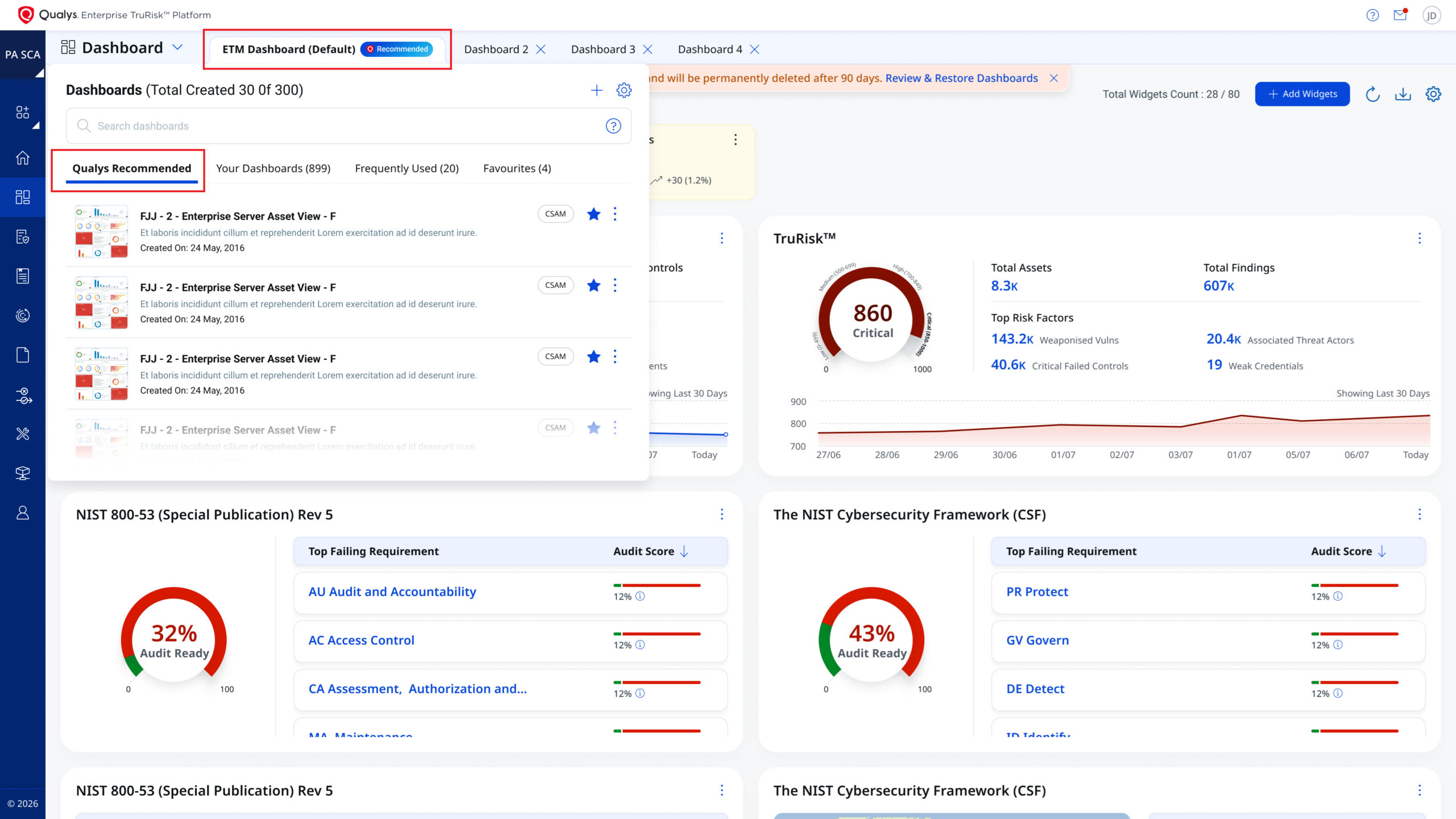
Qualys is introducing Qualys Recommended dashboards across its product suite. Curated by Qualys security experts, these ready-to-use dashboards help teams monitor their environments and focus on relevant security insights.
A dedicated Qualys Recommended section in the Dashboard Picker makes these dashboards easier to find. Qualys may update the recommended dashboards over time to reflect new capabilities, enhancements, and updated recommendations.
You can:
- Use a recommended dashboard: Add a preconfigured dashboard to monitor core metrics.
- Customize a recommended dashboard: Clone a dashboard and adjust its widgets to fit your team’s workflows.
Recommended dashboards are labeled “Qualys Recommended,” making them easy to distinguish from custom dashboards.
Automated Dashboard Lifecycle Management
As environments grow, dashboards can accumulate over time. Some are created for specific projects, investigations, teams, or reporting needs and may no longer be used after those activities end.
To help customers manage inactive dashboards with less manual maintenance, Qualys is introducing Automated Dashboard Lifecycle Management.
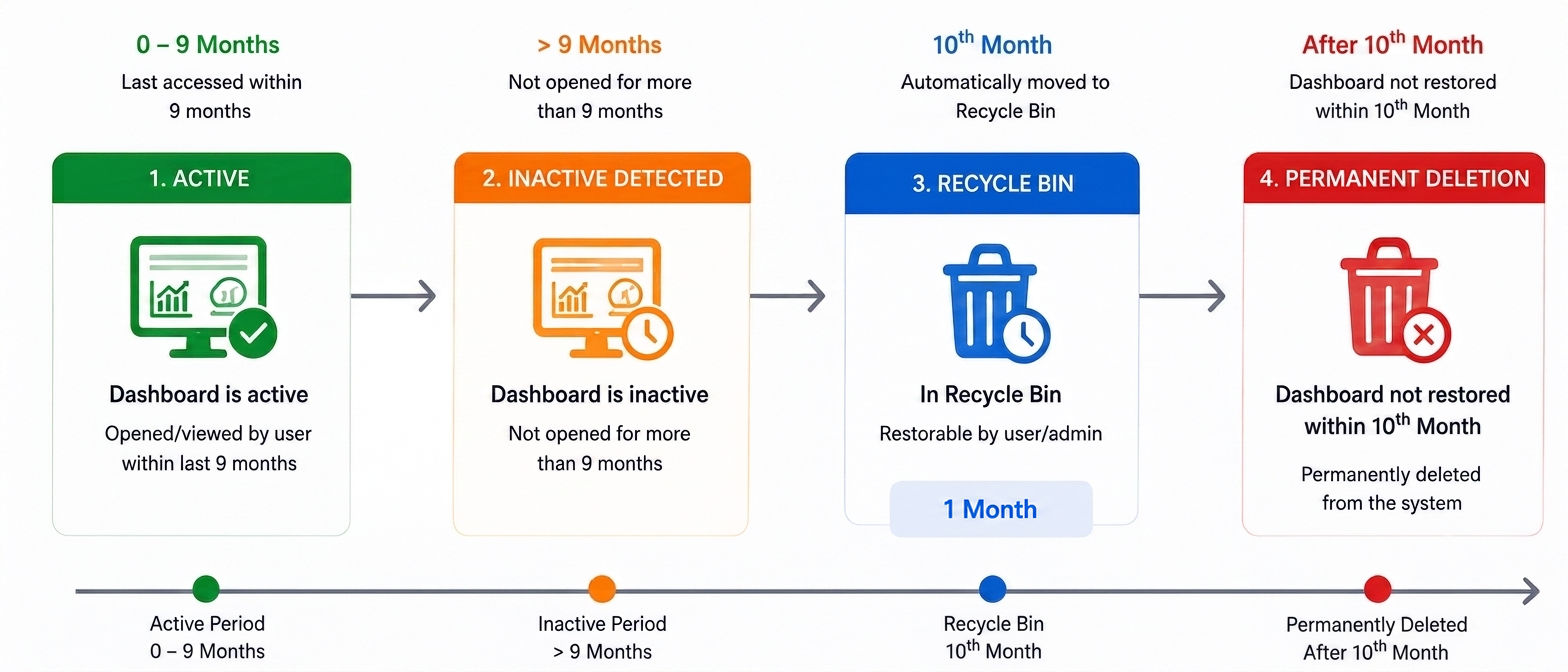
As part of this lifecycle, Qualys will identify dashboards that have not been accessed by any user for more than nine months and move them to the Recycle Bin. Dashboards will remain recoverable for one additional month before they are permanently deleted.
1. Active Dashboards
A dashboard remains active when it is:
- Opened in the user interface
- Accessed through an API
- Configured with scheduled reports
2. Dashboards Not Accessed For More Than Nine Months
If no user accesses a dashboard for more than nine months, Qualys will automatically move it to the Recycle Bin.
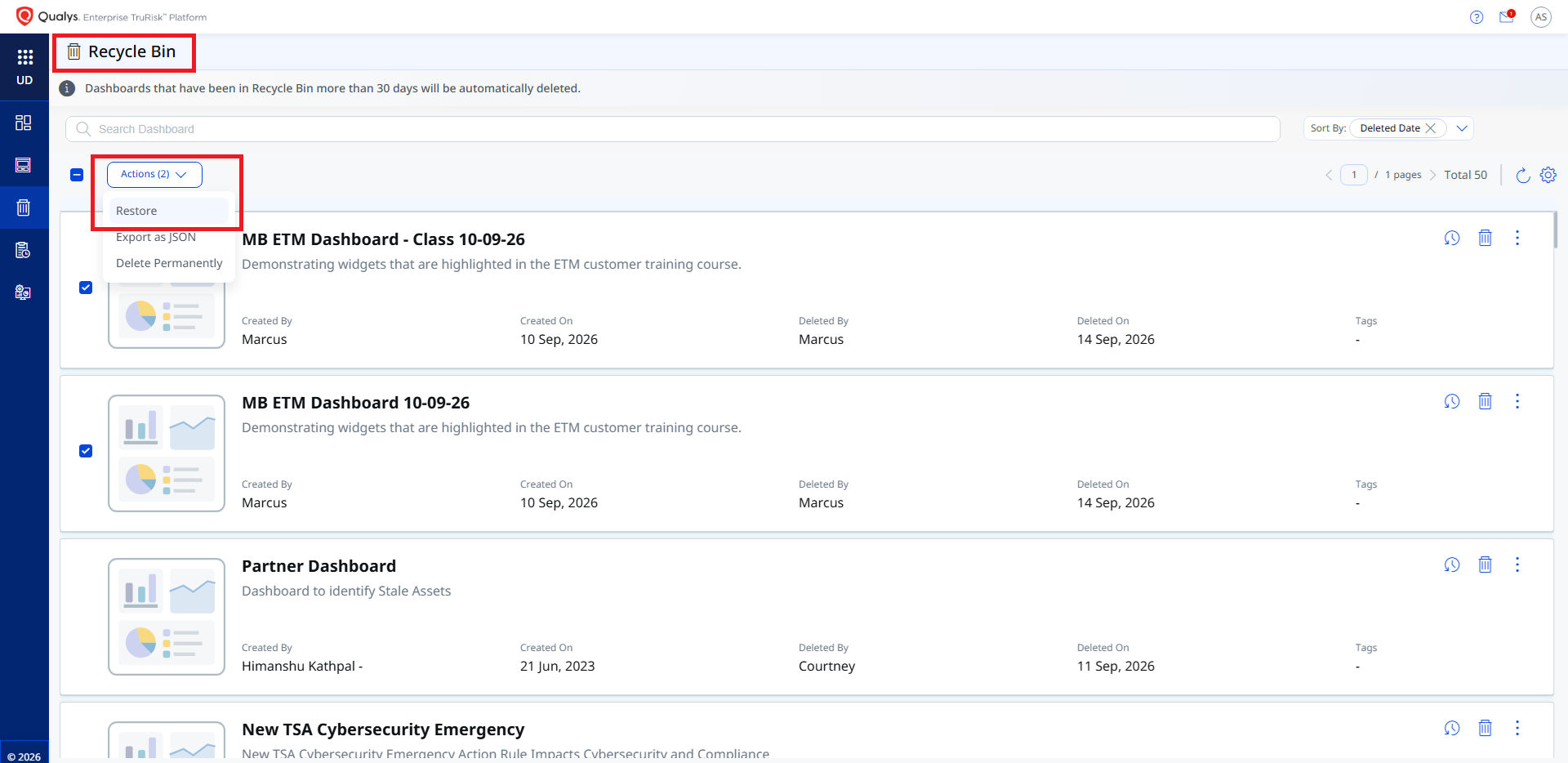
The dashboard will remain in the Recycle Bin for one month. During this recovery period, users can restore it if required.
The Recycle Bin is available from the side panel of the Unified Dashboard module. Once a dashboard is moved to the Recycle Bin, users must use the Restore action to recover it. Simply opening or viewing the dashboard in the Recycle Bin does not restore it or update its access time.
3. Permanent Deletion
If a dashboard is not restored during the one-month recovery period, Qualys will permanently delete it.
This lifecycle gives organizations time to recover dashboards they still need while automatically removing those that remain inactive.
Qualys will notify customers about dashboards scheduled for permanent deletion.
Rollout Timeline
The updated policies are planned to begin rolling out in the first week of October 2026 as part of the Unified Dashboards – UD 2.17 release.
As part of the rollout:
- Qualys Recommended dashboards will begin appearing within supported products.
- Existing dashboards that have not been accessed for more than nine months will be moved to the Recycle Bin.
Following the rollout, dashboards will continue to be evaluated based on the nine-month inactivity period described above.
Actions For Existing Users
1. Confirm That Important Dashboards Are Active
Review your existing dashboards and confirm that the dashboards you still need meet at least one of these criteria:
- Opened in the user interface
- Accessed through an API
- Configured with scheduled reports
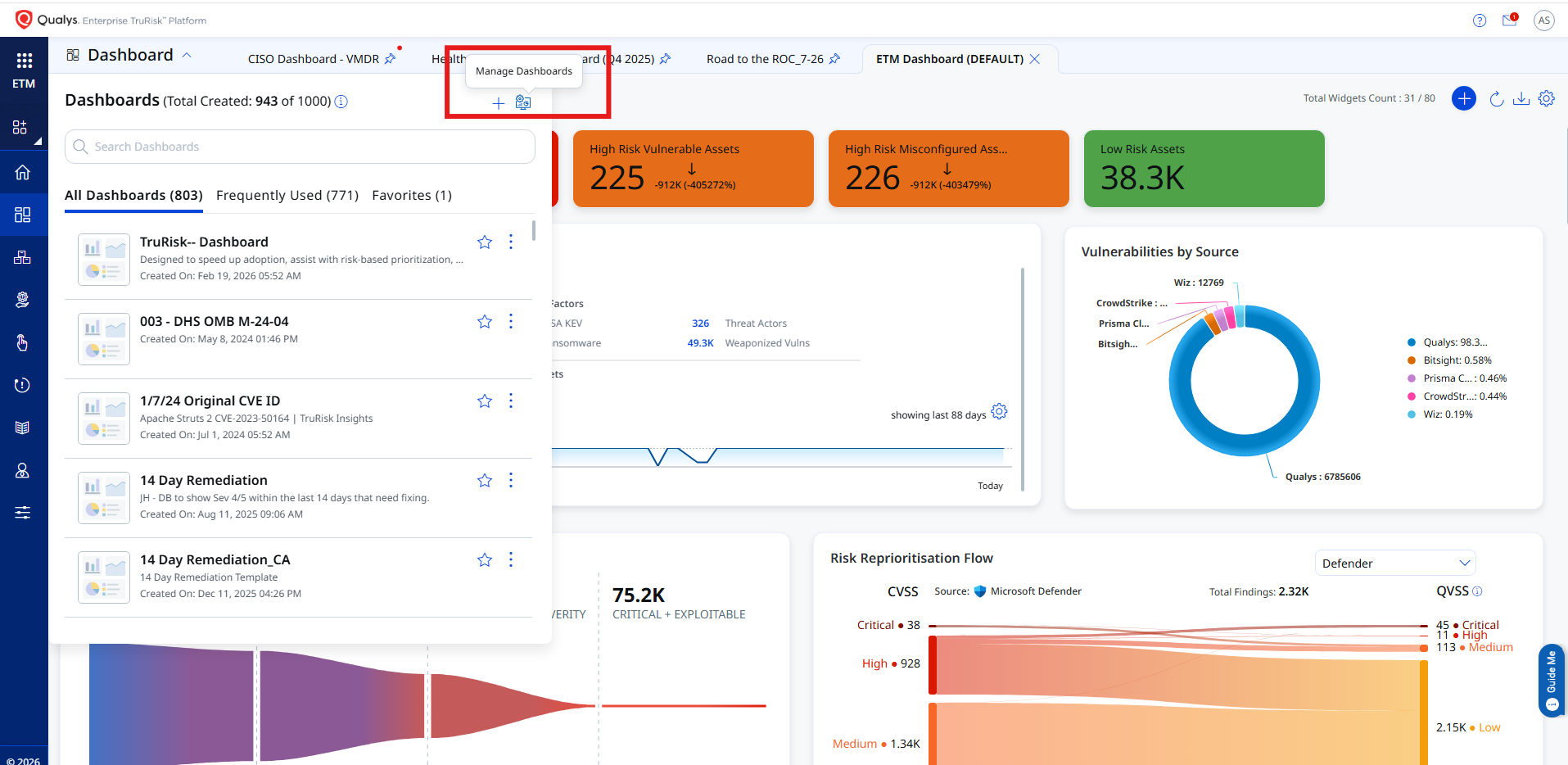
To check the last access time and manage your dashboards, go to Manage Dashboards in the left navigation panel of the Unified Dashboards module, or select the Manage Dashboards icon on the Dashboard Picker page.
2. Review The Recycle Bin After Rollout
If a dashboard you still need is moved to the Recycle Bin, use the Restore action within the one-month recovery period.
Qualys will provide in-product and email notifications about dashboards in the Recycle Bin.
Need Assistance?
If you have custom retention requirements or need guidance managing your dashboards, contact your Qualys Technical Account Manager (TAM) or reach out to Qualys Support.