
Stop Guessing Whether Your Cloud Agents Are Healthy

Table of Contents
- The Challenge: Most Health Checks Dont Tell the Full Story
- Meet the Cloud Agent Health Check Tool
- What a Run Looks Like
- Health Statuses at a Glance
- Running the Tool on Each Platform
- Automating Health Checks at Scale
- Bonus: Visualize It with the Agent Health Dashboard Utility
- Getting Started: A Recommended Workflow
Executive Summary
Qualys Cloud Agents deliver continuous visibility as long as you can confirm that every agent in the fleet is doing its job. Across thousands of endpoints, environments drift: proxies change, configurations shift, and assets go dormant. Conventional checks won’t tell you which agents have fallen out of step. The Cloud Agent Health Check Tool answers that question with a single command. It ships with the agent, requires no scripting or log parsing, verifies that the full chain is installed, running, communicating, and that modules are functioning, and resolves to a single verdict plus a machine-readable JSON report. Run it fleet-wide through Intune, Jamf, or Ansible, or collect it via authenticated VM scans using QID 45619, which also reports from agents that can’t reach the platform.
The vulnerability landscape shifted this year. AI models such as Anthropic’s Claude Mythos have demonstrated that they can find software vulnerabilities, including zero-days that went undetected for years in mature, widely used code, at a scale and speed no human research team can match. That capability is now in defenders’ hands, and it is safe to assume that adversaries are racing to build the equivalent.
The practical consequence for every security team is simple: more vulnerabilities, disclosed faster, with a shrinking window between discovery and exploitation. In that environment, your vulnerability management program is only as good as its telemetry. Every asset the agent has quietly stopped scanning is one whose exposure you cannot see, and in the age of AI-accelerated discovery, that blind spot is more dangerous than ever.
Deploying the Qualys Cloud Agent is only the first step. To trust the data your agents produce, you need confidence that every agent is not just installed, but running, communicating with the platform, and successfully performing the modules it has been assigned, such as Vulnerability Management.
The good news is that there’s a built-in way to verify all of that with a single command and automate the process across your entire environment. In this post, we’ll show you how.
The Challenge: Most Health Checks Don’t Tell the Full Story
When it comes to agent health, most organizations fall into one of three patterns, each leaving a blind spot.
- Install and hope for the best. Without verification, silent failures can go unnoticed, and coverage gaps can quietly appear in your reporting.
- Check that the agent is installed and running. Better, but a running service does not guarantee that the agent is communicating with Qualys or completing its assigned scans.
- Parse the agent logs. This can work, but it means complex, brittle custom logic that must be maintained for each platform and may break with every agent update.
- There’s a better approach: the Cloud Agent Health Check Tool is bundled with the agent, requires no custom scripting, and provides true end-to-end health reporting with a single command.
Meet the Cloud Agent Health Check Tool
The Cloud Agent Health Check Tool ships with the agent itself. There is nothing extra to install and no logs to parse. You run the tool on the host, and it returns the agent’s overall health. Rather than a simple installed/not-installed check, the tool evaluates the complete picture:
- Installed — Confirms that the agent is present and provisioned on the asset.
- Running — Verifies that the agent service is active.
- Communicating — Checks proxy settings and connectivity to the Qualys server endpoints.
- Functioning — Validates that applications such as Vulnerability Management (VM), Policy Compliance (PC), Security Configuration Assessment (SCA), and Patch Management (PM) are functioning based on scan intervals, upload intervals, and last scan / last upload times.
Just as importantly, when something is wrong, the tool identifies the issue, so your team can act on it rather than investigate unquestioningly.
What a Run Looks Like
The best way to understand the tool is to see it in action. Here is an abridged run from one of our Windows lab systems. The tool walks through nine core health checks: installation, services, processes, certificates, proxy settings, backend connectivity, agent communication, module status, and patch connectivity, then rolls everything up into a single overall health verdict:
C:\Users\Administrator>"C:\Program Files\Qualys\QualysAgent\QualysAgentHealthCheck.exe"
Qualys Agent Health Check Tool
Copyright (C) 2025 Qualys, Inc.
**********************************************************************
Performing Health Checks
**********************************************************************
CoreHealthCheck 1 : Verifying if the Qualys agent is installed on your system.
CoreHealthCheck 2 : Retrieving information about qualys services currently running on your system.
CoreHealthCheck 3 : Retrieving information about qualys processes currently running on your system.
CoreHealthCheck 4 : Retrieving certificate information
CoreHealthCheck 5 : Retrieving proxy details
CoreHealthCheck 6 : Assessing connectivity to the backend system.
CoreHealthCheck 7 : Retrieving information about Agent communication.
CoreHealthCheck 8 : Gathering details about Qualys modules installed on the system.
CoreHealthCheck 9 : Assessing patch connectivity.
Evaluating overall health of the system.
**********************************************************************
Qualys Agent Local Health Check Tool Report :
**********************************************************************
Overall Health : Poor
Services :
        Name : qualysagent
        State : Running
Handshake Prerequisite Details :
        Url : https://qagpublic.qg2.apps.qualys.com/CloudAgent/
        Server Certificate Chain Verified : true
        TLS Status:
                Possible TLS Used By Agent : TLS1.2
Agent Communication Details :
        Last CAPI : 2026-08-19 20:06:17.586
        CAPI Interval : 2700
Backend Connectivity :
        Direct Connection :
                URL : https://qagpublic.qg2.apps.qualys.com/status
                Connection Succeeded : true
Modules :
        Name : Vulnerability
        Module Type : Scan based
        State : Ready for Scan
        Enabled : true
        Last Scan Time : 2025-09-20 01:50:16.020
        Scan Interval : 14400
        Module Health : Vulnerability Health Bad
        [additional module and certificate details trimmed]
Detailed Report Location : C:\Users\Administrator\HealthCheck\qualys_agent_health_check_tool_20260819203446.json
Concise Text Report Location : C:\Users\Administrator\HealthCheck\qualys_agent_health_check_tool_20260819203446.txt
Now here’s why this example matters. Every check a traditional approach relies on looks perfectly fine on this host: the qualysagent service is running, the TLS handshake to the platform succeeds, backend connectivity succeeds, and the agent checked in with the platform less than an hour ago. An “is the service up?” script or a quick glance at the console would tell you this asset is covered.
And yet the overall health is Poor. The Vulnerability module reports Vulnerability Health as Bad: it is enabled and ready to scan at 4-hour intervals, but its last completed scan was nearly a year ago. This agent is running, communicating with the Qualys platform, but its vulnerability data is nearly a year out of date. That is exactly the kind of coverage gap only an end-to-end health check can catch.
Notice the last two lines of the output as well: every run writes a detailed JSON report and a concise text report to a HealthCheck directory on the host. That JSON report is what makes fleet-wide automation possible, as we’ll see below.
Health Statuses at a Glance
Every run resolves to one clear overall status, making it easy to triage assets across your environment:
| Status | What it means |
| Good | Agent health is good. No action required. |
| Poor | Some applications of the Qualys Cloud Agent are functioning correctly, but not all. |
| Bad | The Qualys Cloud Agent has communication issues, the service is down, or none of the applications are functioning. |
| Not Installed | The Qualys Cloud Agent is not installed on the asset. |
| Not Provisioned | The Qualys Cloud Agent is installed but has not been provisioned. |
| Tool Error | The tool encountered a critical error while determining agent health. |
Each run produces three outputs: a console output, a user-friendly text summary, and a detailed JSON report. The text and JSON reports are written to a HealthCheck directory created at the location where the tool is executed, making the results easy to collect and forward to your monitoring systems.
Running the Tool on Each Platform
The tool runs independently and requires no parameters. Use the command for your platform:
Windows
Located in the QualysAgent installation directory. Available with Qualys Cloud Agent for Windows 5.5 and later. Find full details in the Windows Health Check Tool documentation.
"%programfiles%\qualys\qualysagent\QualysAgentHealthCheck.exe"Linux
Available with Qualys Cloud Agent for Linux 6.3 and later. Find full details in the Linux Health Check Tool documentation. On Linux, the tool also evaluates User-Defined Control (UDC) and Software Composition Analysis (SwCA), in addition to VM, PC, SCA, and PM.
/usr/local/qualys/cloud-agent/bin/qualys-healthcheck-toolmacOS
Available with Cloud Agent for macOS Intel 6.4 and macOS Apple Silicon 6.5. Find full details in the macOS Health Check Tool documentation. Add the optional runPatch parameter to include Patch Management checks.
/Applications/QualysCloudAgent.app/Contents/MacOS/qualys-healthcheck/Applications/QualysCloudAgent.app/Contents/MacOS/qualys-healthcheck runPatchAutomating Health Checks at Scale
Running the tool on one host is useful , but running it continuously across your fleet is where the real value lies. There are two complementary ways to operationalize this.
Option 1 — Use Your Endpoint Management Tools
Use your existing endpoint or configuration management tooling, such as Microsoft Intune, Jamf, Chef, Puppet, or Ansible, to execute the Health Check Tool on a scheduled basis. Here is the recipe:
- Package the command as a scheduled job. Wrap the one-line command for your platform (shown above) in a script or policy in your management tool. For example, a script deployed through Intune, a policy in Jamf, or a task in Chef, Puppet, or Ansible.
- Run it daily or weekly on every managed asset. Daily is our recommendation as the tool is lightweight and runs in seconds.
- Parse the JSON report. Each run writes a timestamped JSON report (the same one you saw at the end of the example above) to a HealthCheck directory created where the tool executes. The report is designed to be machine-readable. Your script simply reads the overall health value. No log parsing, no per-platform custom logic, just one field to evaluate.
- Flag anything but Good. If the overall health comes back as anything other than Good, like the Poor verdict in our example, flag that asset for additional analysis: open a ticket, tag the asset, or alert the owning team. The detailed findings in the same report tell the responder exactly where to start.
- Optionally, centralize the results. Forward the JSON reports to your log pipeline or SIEM so you can trend agent health over time and build fleet-wide dashboards.
We practice what we preach here at Qualys. Our own IT and security teams run the Health Check Tool daily across our fleet: on Windows and macOS systems, we execute it via Microsoft Intune; on Linux, we forward the results to Elasticsearch via a log forwarder, where unhealthy agents are surfaced for review. Want to replicate our setup? We’ve published the exact Intune steps we use internally so you can deploy the same daily health check in your own environment.
This turns agent health into a routine, automated signal, allowing you to proactively remediate unhealthy agents before they create coverage gaps.
Option 2 — Use a Qualys Scanner Appliance
You can also collect agent health through your Vulnerability Management scans. In fact, the agent itself executes the Health Check Tool during a VM scan, but relying on the agent alone creates a chicken-and-egg problem: if the agent is not running or not communicating, it can never report being unhealthy. The very agents you most need to hear about are the ones that go silent.
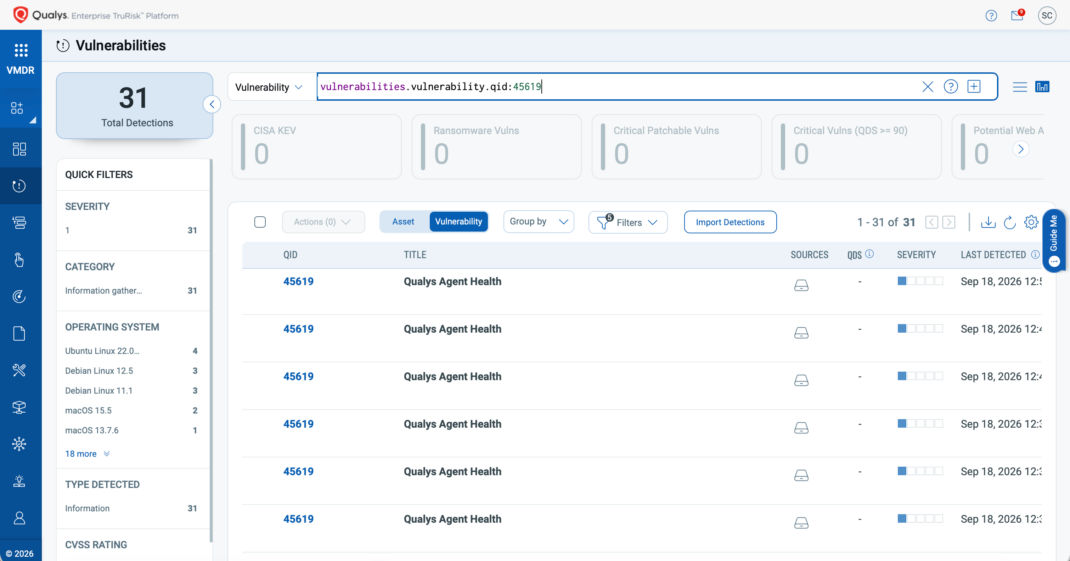
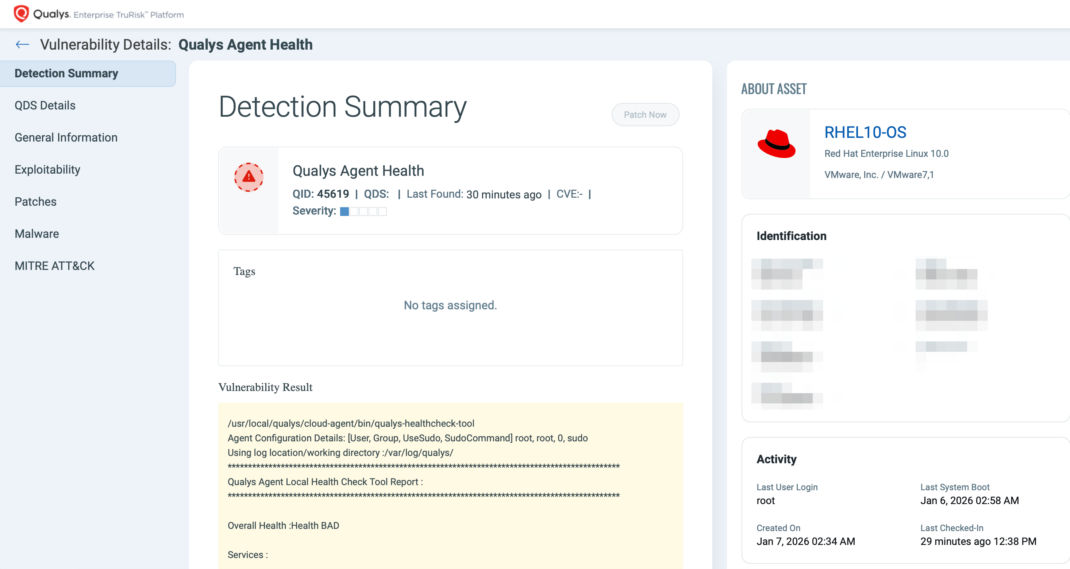
That is why the emphasis here is on the Qualys Scanner Appliance. The scanner assesses the host from the outside, executing the Health Check Tool during the scan regardless of the agent’s condition, so an agent that is stopped, broken, or unable to reach the platform still gets reported. Results are delivered through QID 45619, the Qualys Agent Health, which reports the agent’s health status directly within your VM scan results. Here is how to set it up:
- Set up authentication records for your target assets. Authenticated scanning is required. The scan must authenticate to the target asset before executing the tool.
- Opt in to On-Host Script Execution (Windows). Enable this setting in your Option Profile so the scanner can execute the tool on the host: Scans > Option Profiles > New/Edit > Scans > On-Host Script Execution > enable the checkbox > Save. This capability was introduced in Enterprise TruRisk Platform release 10.39.1 (July 13, 2026). The Windows target host should have SMB service and Windows Remote Management service running during the deployment. Ensure SMB (TCP 445) and WinRM over HTTP (TCP 5985) are reachable from the scanner to the target host.
- Make sure QID 45619 is in scope. If your Option Profile uses custom search lists, add QID 45619, the Qualys Agent Health so the detection is included in your scans.
- Launch or schedule your authenticated VM scans using that Option Profile, on your normal scanning cadence.
- Review the results. QID 45619 reports each agent’s health status directly within your VM scan results and reports, and because it lives in the platform, the data is also available via API.
A useful side benefit: when On-Host Script Execution is enabled, and the scan targets a host with a Windows NT authentication record, the scanner can fall back to PowerShell-based execution if standard authentication fails, improving scan reliability while enabling health-check collection.
Qualys Cloud Agent for Windows: Agent-based QID 45619 reporting on Windows is temporarily paused while we fix a small bug that caused the Health Check Tool to make unintended network calls on agents prior to 6.4. Support returns at the end of October 2026 for Cloud Agent for Windows 6.4 and later. Scanner-based collection on Windows is unaffected and available today.
Bonus: Visualize It with the Agent Health Dashboard Utility
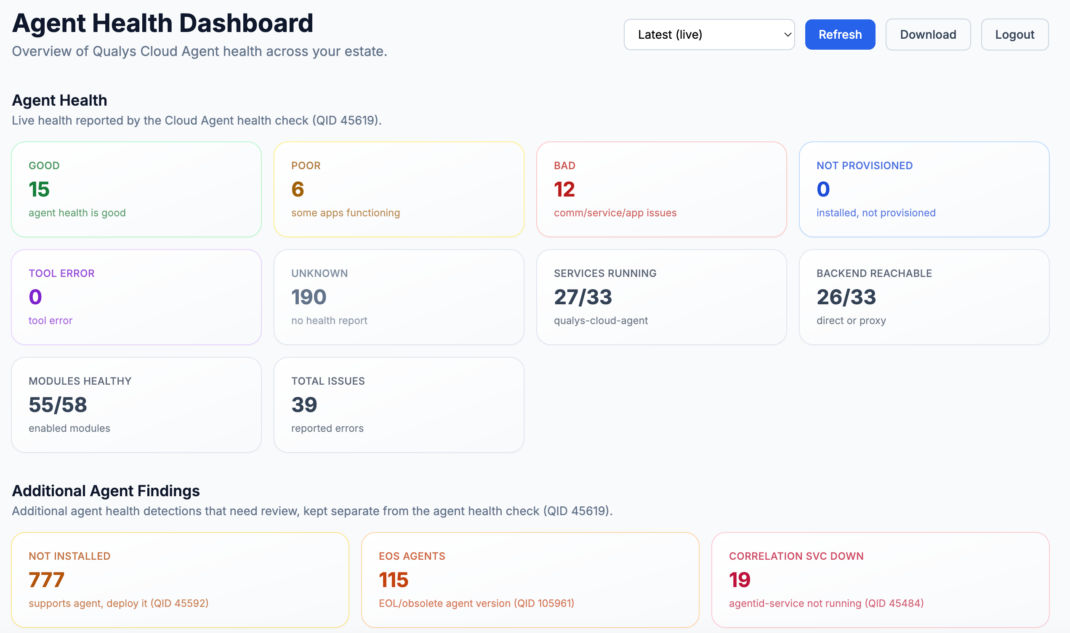
Once your scanners are collecting agent health through QID 45619, you don’t have to dig through scan results to see the big picture. We’ve built a companion Agent Health Dashboard utility that makes an API call to the platform, pulls the agent health data your scanners have collected, and presents it in a clean UI.
At a glance, you can see how many agents report Good, Poor, or Bad health, which assets are installed but not provisioned, and which have no health report at all, alongside fleet-wide rollups such as services running, backend reachability, healthy modules, and total reported issues. From there, triage is simple: start with the Bad column, then work through the Poor and Unknown columns.
Getting Started: A Recommended Workflow
- Confirm your agents meet the minimum version for the Health Check Tool on each platform (Windows 5.5+, Linux 6.3+, macOS Intel 6.4+ / Apple Silicon 6.5+).
- Schedule the tool through Intune, Jamf, Chef, Puppet, or Ansible on a daily or weekly cadence, and/or enable QID 45619 via authenticated VM scans.
- Collect the text/JSON reports (or QID 45619 results viewable at a glance in the Agent Health Dashboard utility) and flag any asset reporting Poor or Bad health.
- Use the tool’s specific findings to remediate the root cause, whether it’s communication, service state, or a specific module, and restore full coverage.
Agent health doesn’t have to be a guessing game. With the Cloud Agent Health Check Tool, verifying true end-to-end health is a single command on any host and a fully automated signal across your fleet.